Find Projects and Information Quickly
Search and sorting tools help you narrow a busy workspace without moving, deleting, or changing anything.
When Scryla finds a match, nonmatching projects, series, or cards are temporarily hidden so the relevant results are easier to see.
Search Projects and Series
From the main Projects dashboard, use the search field above your project and series lists.
Enter part of a project or series name.
Scryla hides items that do not match.
Clear the search field to restore the full list.
You do not need to enter the complete title. A distinctive word or short phrase is usually enough.
Sort Your Projects and Series
Use the Sort menu beside the search field to change how items are ordered.
Sorting changes the order in which projects or series appear. It does not rename, move, or otherwise alter them.
Favorite projects remain prioritized at the beginning of the project list, while the selected sorting option continues to organize the items within the list.
Search Inside a Project
Inside a project, select the Search icon at the top of the screen.
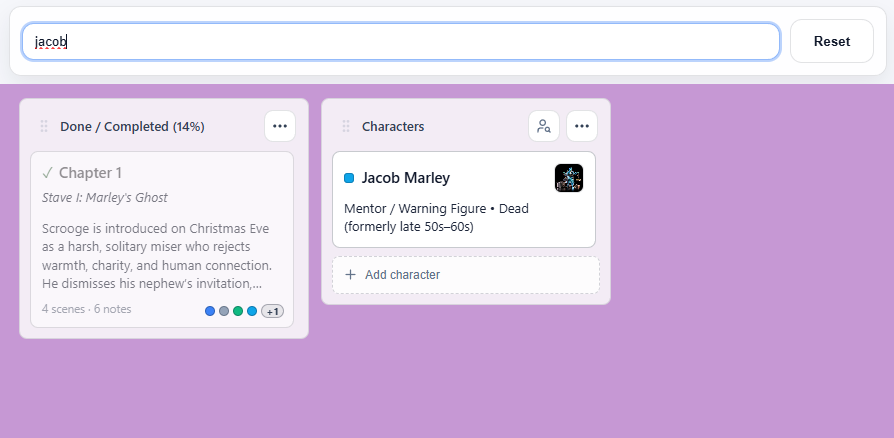
Enter a word or phrase, and Scryla hides cards that do not contain a match. This can help you locate:
A chapter by title or content
A note containing a remembered phrase
A character
A worldbuilding record
A specific detail buried in a larger workspace
For example, searching for Robert may reveal only the cards (chapters, notes, characters) containing that phrase while hiding unrelated cards and columns.
Where In-Project Search Is Available
In-project search is available in:
Board
Characters
Worldbuilding
Notes
It is not currently available in:
Story Map
Outline
Search applies to the view you are currently using. Moving to another supported view gives you a different set of cards to search.
Clear a Search
Click Reset to restore the view and unhide all items.
Search never deletes or permanently filters your content. It only changes what is visible while the search term remains active.