Story Map: Story view
In the main Story view, you can see at a glance the context of your project, laid out in collapsible panels of chapters with scenes and story events.

Tap the collapsed tab to expand all scenes and story events within a chapter.
Inside a chapter card, you’ll find:
Chapter title, subtitle and overview
Based on the information for that chapter that you previously provided in Board view.Chapter mapping
Here you can map your story impact and intensity at a chapter level. Story impact options help you identify the chapter’s purpose or action, and feeds into the Structure sub-page. Impact options are:Setup
Rising tension
Revelation
Reversal
Confrontation
Fallout
Reflection
Transition
Climax
Resolution
Intensity levels help you visualize the intensity of the chapter:
Low
Medium
High
Scryla doesn’t select these options for you, you should make the choice based on the intensity or stakes of the chapter in question. This data also feeds into the Structure sub-page where you’ll find a visual representation of your story’s structure.
You can opt for chapter-level story mapping or drill down to scene-level mapping. If you don’t want to be so granular, you can stick to chapter-level mapping only. The Structure sub-page will pick up on whichever option you choose here.
Characters
See a list of characters that you’ve tagged in the chapter. You can spot overuse or underuse of characters as you scan over your project’s story view.
Linked beats
You’ll find narrative beats or character arc beats that pertain to this chapter listed here. These should act as reminders of where your narrative and character actions occur.Action controls
You can drag and drop chapters to rearrange their order using the drag handle on the top left of each chapter card. Alternatively, use the up/down arrow controls on the bottom right of your chapter.
Here, you can also open the source chapter to make amendments, archive the chapter (and its scenes and story events), or permanently delete the chapter if you need to.
Scenes and story events
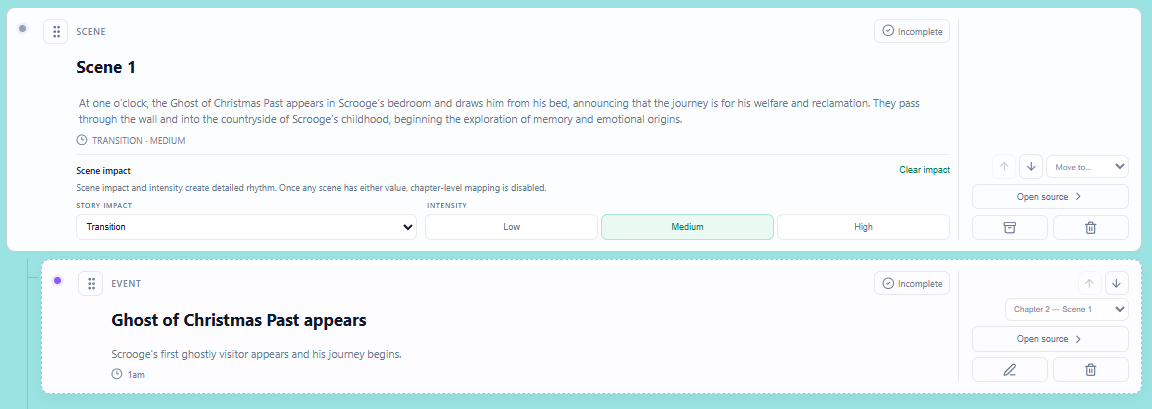
Scenes and story events act in the same way Chapters do.
Drag and drop to rearrange, or set individual scene-level intensity and impact markers.
Moving a scene or story event to a different chapter
If you decide a scene is better placed in an earlier or later chapter, you don’t need to delete the scene from its existing chapter and recreate it in the new one. You can drag and drop a scene in Story Map view to a different chapter and Scryla will update to reflect its new position.
You can do the same with story events.