Storing and Organizing Your Manuscripts
The Manuscripts archive keeps each project’s draft and final manuscript files together, so the version you need is always close at hand.
Scryla does not write, edit, or convert these files. It stores them alongside the project, giving you a clear record of your manuscript versions and access to them from any supported device.
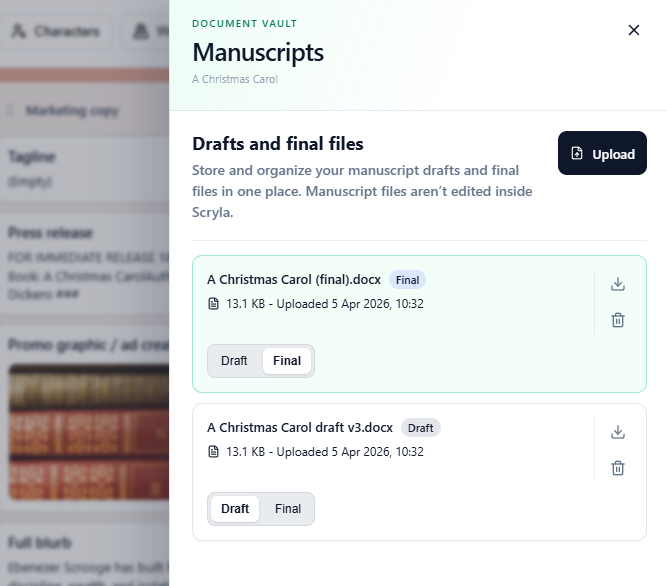
Open the Manuscripts Archive
Open a project, then select Manuscripts from the navigation menu workspace.
The archive shows every manuscript currently stored for that project, including its filename, file size, upload date, and status.
Upload a Manuscript
To add a file:
Open the project’s Manuscripts archive.
Select Upload.
Choose the manuscript file from your device.
Wait for the upload to finish.
New files are added as Drafts by default.
You can upload multiple versions of a manuscript, making it easier to preserve earlier drafts, editorial copies, and completed files without mixing them with other project documents.
Tip
Give each file a descriptive name before uploading it, such as Novel draft v3.docx or Novel final.docx. Clear filenames make older versions easier to identify later.
Mark a Manuscript as Final
Each project can have one manuscript marked Final.
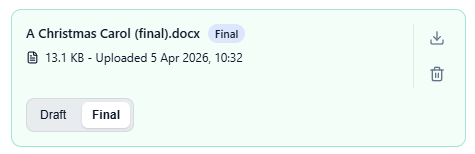
To change a file’s status, select Final beneath the manuscript. Scryla highlights it and places a Final label beside the filename, making the completed version easy to recognize.
A final manuscript remains in the same archive as your drafts. Its status simply identifies it as the project’s current definitive version.
Replace the Final Manuscript
Only one file can be marked as final at a time.
Before marking another manuscript as final:
Find the current final manuscript.
Select Draft beneath it.
Find the replacement file.
Select Final.
This prevents two files from appearing to be the definitive manuscript for the same project.
Marking a file as a draft does not alter its contents or remove it from storage.
Download a Manuscript
To save a stored manuscript to your current device, select the download icon beside the file.
The downloaded copy is separate from the version stored in Scryla. Editing the downloaded file does not update the archived version automatically. Upload the revised manuscript as a new file when you are ready to store it in the project.
Delete a Manuscript
To remove a file, select the delete icon beside it and confirm the action.
Deleting a manuscript removes it from Scryla’s storage. Make sure you have another copy before deleting a file you may need later.
Important
Downloading a file creates a copy. Deleting the version in Scryla does not remove any copies already saved on your device.
Keep a Useful Version History
The archive is most useful when each stored manuscript represents a meaningful stage of the project. You might keep:
The current working draft
A draft sent to an editor
The revised manuscript returned from editing
The final submission or publication file
You do not need to upload every small revision. Keeping only significant versions makes the archive easier to understand and reduces unnecessary storage use.
Manuscripts and Storage
Uploaded manuscripts count toward your Scryla storage allowance. Your current usage and remaining space appear at the bottom of the Manuscripts archive.
Remove obsolete files when they are no longer useful, but keep local backups of anything important. The archive is designed to organize your manuscripts, not replace a broader backup routine.