Understanding the Notes View
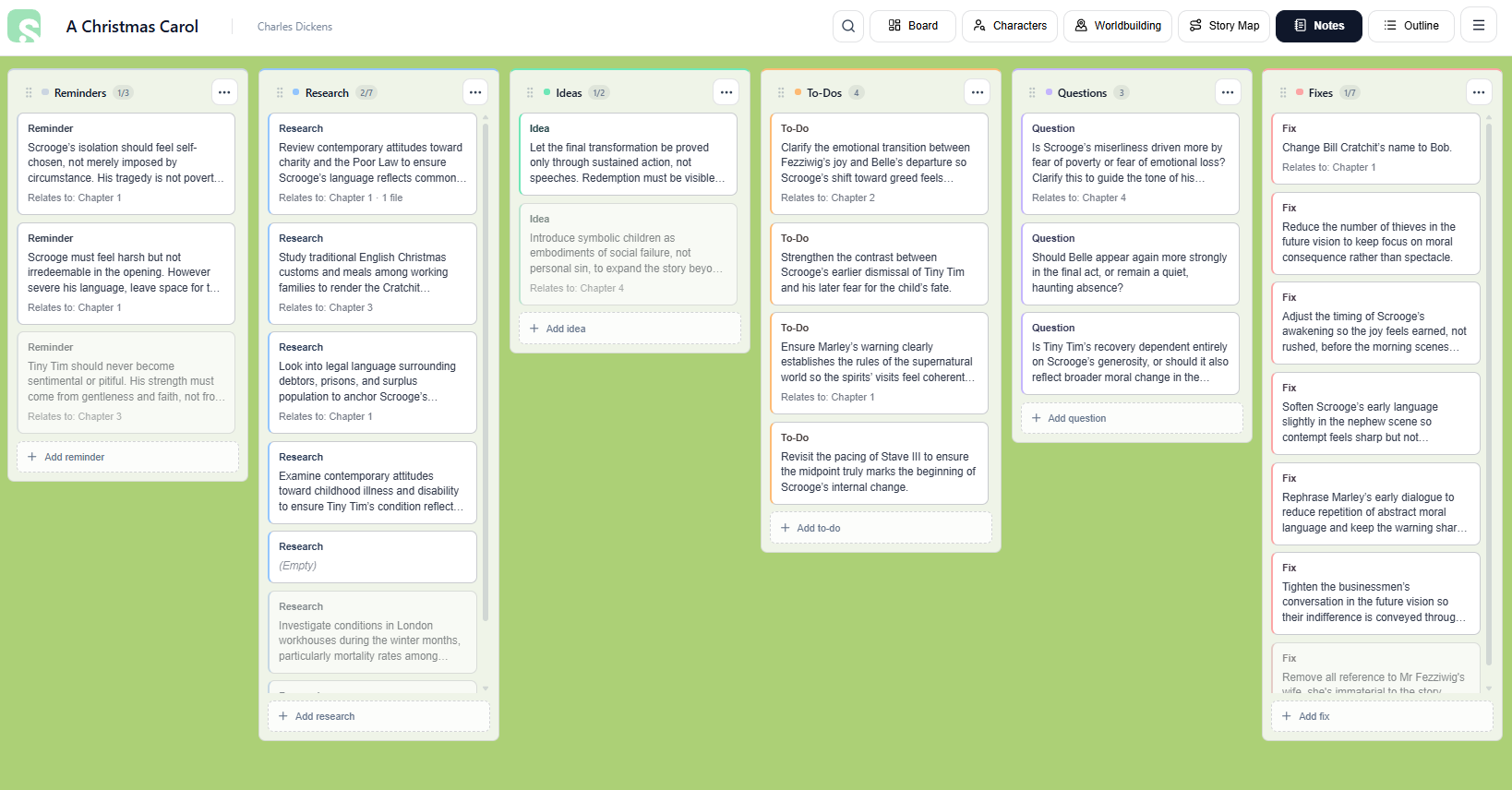
The Notes view acts as an enhanced or more in depth view of your notes column from the Board view.
It is laid out just like the Board view, in six kanban columns, this time separating each of your note types into its own column.
You can see at a glance all of your notes by type:
Reminders
Research
Ideas
To-dos
Questions
Fixes
Column cards act in the same way as they do on Board view.
Drag and drop to rearrange cards within a column
Drag and drop columns to rearrange their order
Mark notes cards as complete or incomplete
Tap a card to open it, or tap the + Add button at the bottom of a column to add a new note of that type.
