Understanding the Board view
When you first open your new project, you’ll be presented with six kanban columns and a number of views to work through. It might look daunting at first, but Scryla is laid out with purpose and ease in mind.
So let’s dive in!
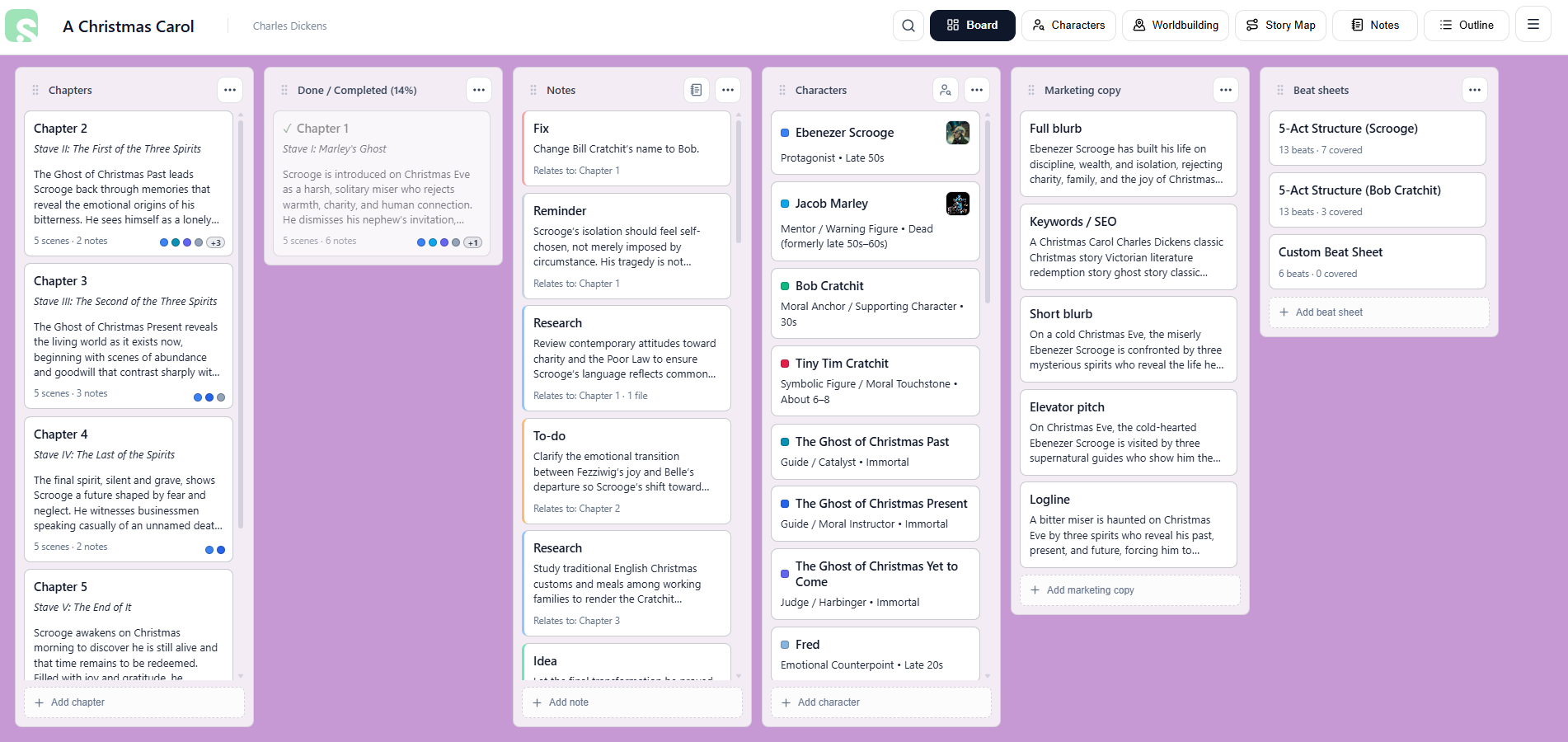
Board view columns
Chapters
You will build your project’s chapters and scenes here. Click the + Add chapter button at the bottom of the column to create your first chapter outline.

Reminder: Scryla helps you create your story outline and track narrative progression. It is not intended as a writing tool where you type or paste your actual story.
Jump to: Adding a new chapter
Done / Completed
When you mark a chapter as completed, it automatically moves out of the Chapters column and into the Done column. You cannot manually create chapters in this column, so there’s no Add button. At the top of the column, you’ll see the percentage of your story that is complete (number of complete chapters vs number of incomplete chapters)

Notes
Here you can track story-related notes such as ideas for scenes, research notes, story fixes and more. If a note requires an action, you can mark it as completed when you’re done with it.
Jump to: Adding story notes
Characters
Add your protagonist, antagonist, and supporting cast here. Each character profile offers the ability to upload a profile image/avatar, and outline your character’s traits and appearance. You can color-code them for visual reference throughout Scryla.
Jump to: Adding characters
Marketing Copy
Here you can upload cover images, blurb copy, advertising copy and more. Use the marketing column to store marketing-related content that you can access when needed, from any device, regardless of where the original file was uploaded.
Jump to: Adding marketing copy and assets
Beat Sheets
Story frameworks can help plotters because they allow you to track narrative progression from your opening scene to you final words. A project in Scryla can have multiple beat sheets (one for each relevant character, for example).
Scryla has 30 narrative frameworks to choose from, including Gwen Hayes’ Romancing the Beat, Blake Snyder’s Save the Cat, Dan Harmon’s Story Circle, and many more. Each framework is laid out as a progressive beat sheet for easy entry.
Jump to: Adding a narrative framework
Rearranging Scryla’s columns
Not everyone develops their story in the same way. Some start with characters, some with a detailed beat sheet.

Board Navigation

Easily switch between Board view or a dedicated workspace for Characters, Worldbuilding and Notes.
Scryla also offers a Story Map workspace where you can dive deeper into your narrative structure, track character arcs and relationships, and manage series-related progress.
The Outline view becomes immensely useful once you’ve created your chapter and scene cards. Outline view pulls your entire narrative arc together in one visual flow as a presentable outline document. Pro users can download a full formatted Outline of their entire story with the click of a button.