Managing Your File Storage
The Storage Workspace gives you one place to review every file uploaded to Scryla.
It includes project covers, research files, character avatars, manuscripts, series assets, and other uploaded documents. From here, you can see what is using space, find older files, download anything you want to keep, and permanently remove files you no longer need.
Your Storage Allowance
Your available storage depends on your plan:
Free: 500 MB
Pro: 10 GB
The Storage card at the bottom of the Projects dashboard shows how much space you have used and how much remains.
Uploaded files count toward this allowance. Project text, notes, planning data, and other content written directly inside Scryla do not use file storage in the same way.
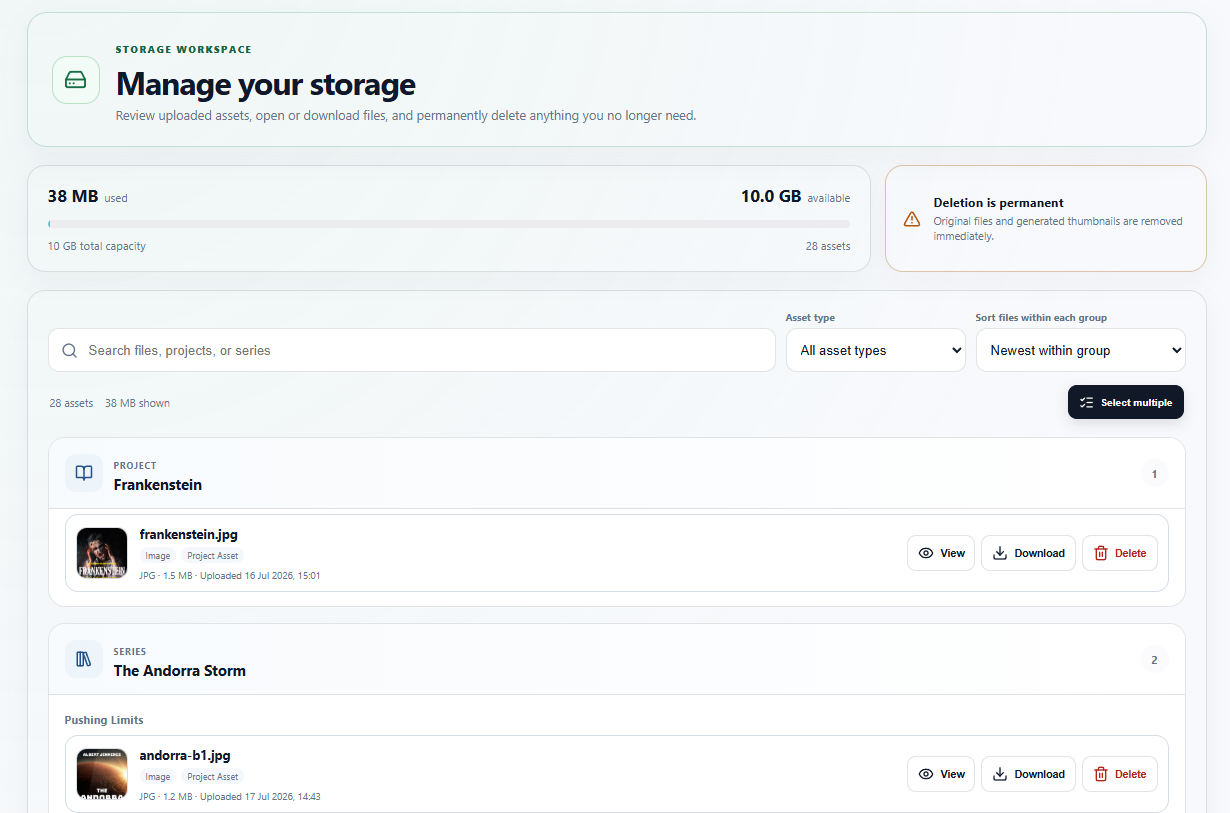
Open the Storage Workspace
Storage is managed from the main Projects dashboard, not from inside an individual project.
To open it:
Return to All Projects.
Scroll to the bottom of the dashboard.
Select Manage storage from the Storage card.
The Storage Workspace opens with a summary of your current usage and a complete list of uploaded files.
Understand Where Files Belong
Files are grouped by the project or series they belong to. This helps you see not only what has been uploaded, but why it is being stored.
Depending on how you use Scryla, a group may include:
Project cover images
Character avatars
Research documents and images
Manuscript drafts
Series-level assets
Files attached to planning or worldbuilding records
Some projects may contain only one or two uploads. Others may build a much larger archive over time.
Find the Files You Need
Use the controls at the top of the Storage Workspace to narrow the list.
You can:
Search by filename, project, or series
Filter by asset type
Change how files are sorted
Review files within their project or series groups
This is especially useful when a project contains many research images or several versions of the same manuscript.
Tip
Sorting by the newest or oldest files can help you identify recent uploads or older material that may no longer be needed.
View or Download a File

Each file includes controls for viewing and downloading it.
Select View to preview a supported file without first saving it to your device.
Select Download to save a copy locally.
Downloading a file does not remove it from Scryla or reduce your storage use. It simply creates another copy on your device.
Delete an Individual File
To remove one file:
Find it in the Storage Workspace.
Select Delete.
Review the warning.
Confirm the deletion.
Deleting a file removes the original and any generated thumbnails from Scryla’s storage.
Important
Storage deletion is permanent. Download anything you may need before removing it.
Deleting an uploaded file does not delete its project or series. However, any place in Scryla that used that file will no longer display it.
Manage Several Files at Once
For larger cleanups, choose Select multiple.
You can then select several files and apply the available action to the whole group. This is useful when removing outdated research images, duplicate uploads, or old manuscript versions.
Review your selection carefully before confirming a deletion. Files removed in a batch cannot be restored from the Storage Workspace.
Make Space Without Losing Important Work
When storage begins to fill, start with files that are easy to replace or no longer useful:
Duplicate uploads
Superseded manuscript drafts
Unused cover concepts
Temporary research downloads
Large images that are no longer connected to the project
Download anything worth preserving before deleting it.
A smaller, intentional file library is easier to navigate and keeps your storage available for the material that still supports your work.