Adding depth to your chapter with scenes
Once you’ve created and saved your first chapter, you can begin to add scenes and story events.
Scenes
You can stick with a chapter overview if that’s who you work. Some authors never plot as granular as a scene level outline. But for those who do, add your first scenes here.
Scenes are subdivisions of chapters. Where your chapter overview details the main driving factors of that chapter, a scene further breaks it down into its parts.
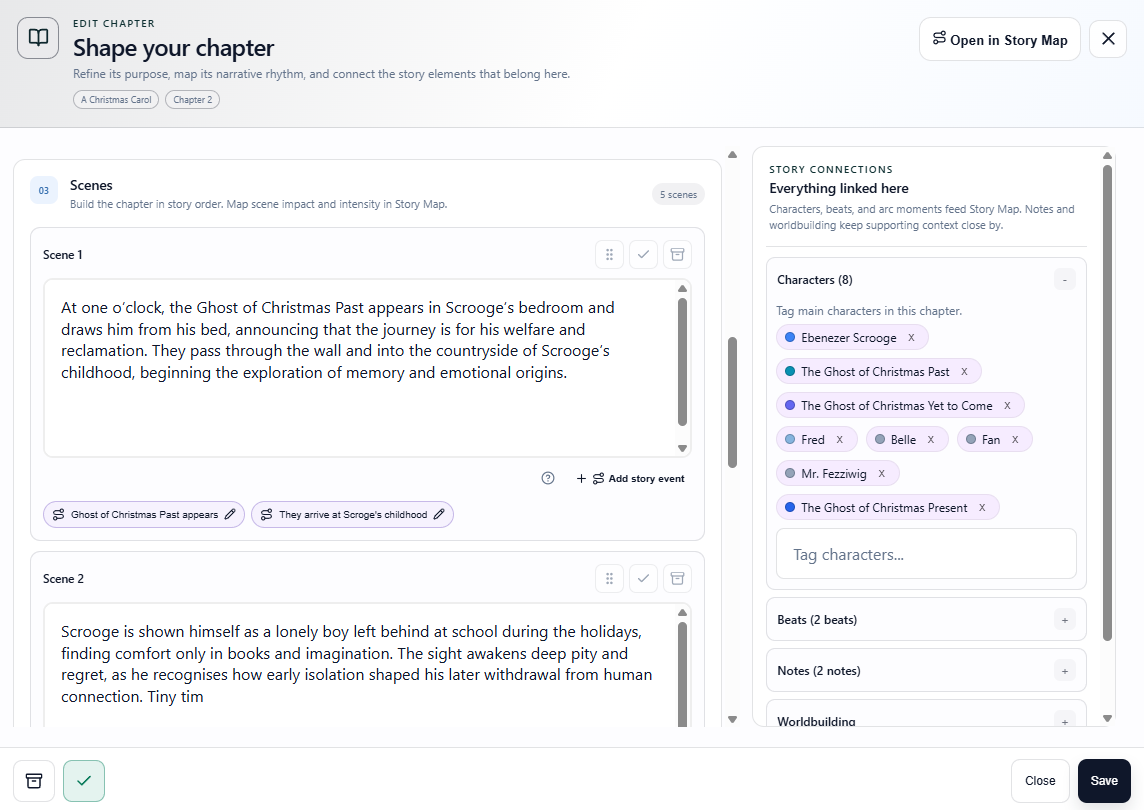
In the example above, Scene 1 sees the arrival of The Ghost of Christmas Past in Scrooge’s bed chamber. Scene 2 takes place in the past, where the Ghost has taken Scrooge to his childhood.
A scene is often a self-contained story with its own mini arcs and location.
Story events

You can add more granular information to a scene (if you want to) by creating trackable story events. Story events are the main plot points or action points that occur within the scene, for example, The ghost’s arrival, the transportation to the past, and so on.
Why add story events? You don’t need to, but if you do, you can mark each one as complete (in Story Map view) while you draft your story in full, making sure you never miss a single important plot point.
Scene controls

At the top right of each scene, you can control the scene order by dragging and dropping it into a new position (i.e., moving scene 4 to between scenes 2 and 3, thus making it the chapter’s new scene 3).
You can mark a scene as complete when you’ve finished drafting it (or incomplete if you need to redraft it).
And you can archive the scene if you no longer need it.
Archiving an item in Scryla moves it to your Archive drawer, accessible from the main navigation controls at the top of Scryla. You can restore it from the Archive drawer if you later decide you need it.
Permanently deleting a chapter, scene, character, etc has deliberately been hidden from Board views to avoid accidental deletion. You should archive the item first, then, if you truly decide you no longer need it, you can delete it permanently (and irretrievably) from your Archive drawer.
Chapter controls
In the footer area of the chapter window, you can
Archive the entire chapter (including any scenes and story events).
Mark the full chapter as complete or incomplete
Close the window without saving
Save and close the chapter.
Read next: Adding important story notes to your project