Switching Between Light and Dark Mode
Scryla includes light and dark appearance modes so you can choose the workspace that feels most comfortable.
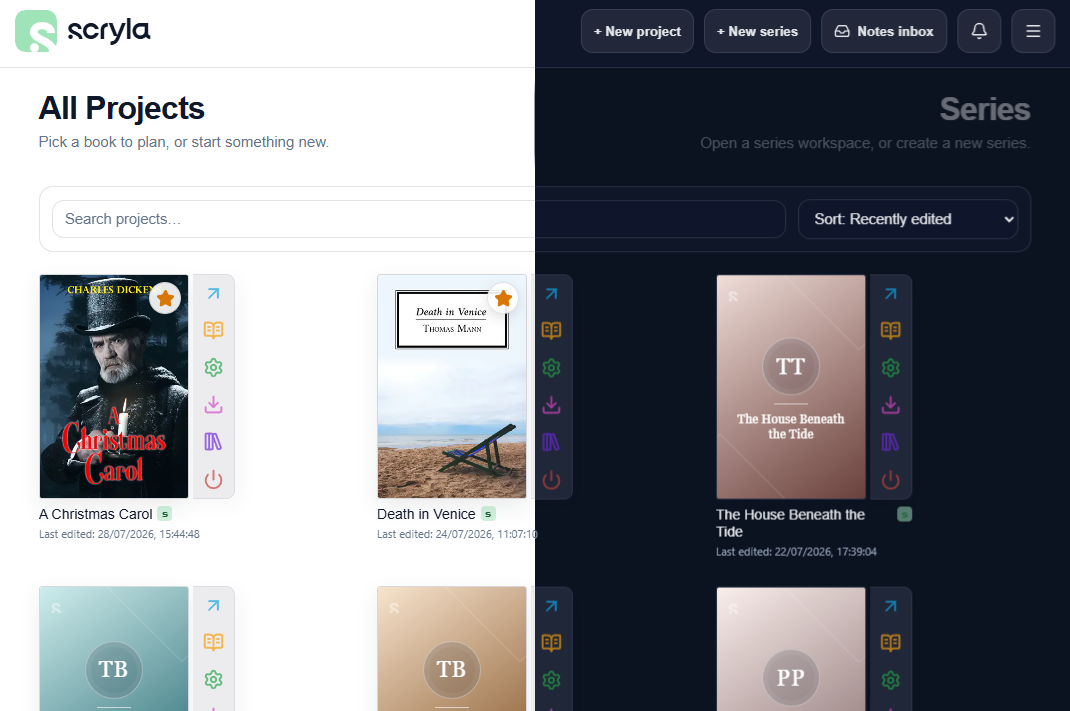
Light mode gives you a bright, clean workspace. Dark mode reduces overall screen brightness and may feel easier on the eyes in dimmer environments or during longer planning sessions.
Change the Appearance Mode
You can switch modes from anywhere in Scryla, whether you are inside a project or on the main Projects dashboard.
To change the appearance:
Open the main navigation menu.
Find the Dark mode toggle.
Turn it on to use dark mode.
Turn it off to return to light mode.
The change applies across Scryla immediately.
Choose the Mode That Suits the Moment
Neither mode changes your projects, settings, or content. It only changes how the interface appears.
You might prefer:
Light mode in bright rooms or during daytime use
Dark mode in low light or when you want a less luminous workspace
You can switch between them whenever your surroundings or preferences change.