Story Map: Structure view
The Structure view helps you see the shape of your story at a glance. It combines pacing, narrative beats, and character arcs into a single visual overview so you can spot imbalances before they become problems.
The page is divided into three sections:
Story timeline: a summary of your project's overall structure.
Narrative rhythm: a visual representation of pacing and scene intensity.
Timeline structure: a layered view of narrative frameworks, character arcs, and notes across your chapters.
Story timeline

The Story timeline provides a quick summary of your project.
It shows:
the total number of chapters or scenes
how many have been mapped to narrative beats
how many narrative or character arcs are currently displayed
These figures update automatically as your project grows, giving you an instant overview without needing to inspect each chapter individually.
Narrative rhythm
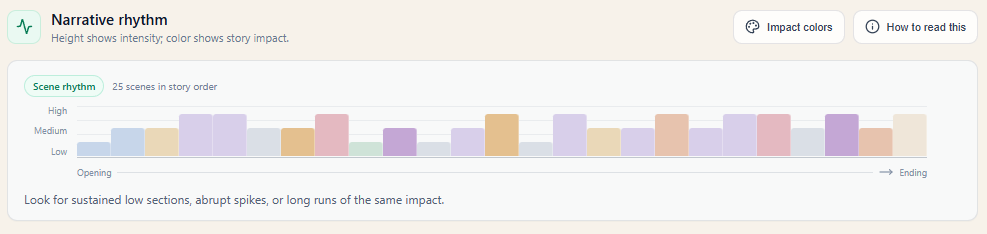
The Narrative rhythm graph visualizes how your story flows from beginning to end.
Each column represents a chapter or scene. The column's height reflects its assigned intensity, while its colour represents the impact type you've chosen in Story View.
Rather than judging individual scenes, use this graph to look for patterns.
For example, you might notice:
several low-impact chapters occurring together
an unusually long sequence of action scenes
abrupt jumps in pacing
a climax that arrives earlier or later than expected
Remember: There is no single "correct" rhythm. Different genres and storytelling styles naturally produce different pacing patterns. Use the graph to support your creative decisions, not dictate them.
Timeline structure
Timeline structure brings together your story’s different planning layers in a single chapter-by-chapter view.
Depending on which layers you have enabled, you can compare:
plots and subplots
narrative frameworks
character arcs
chapter-linked notes
custom timelines
other story elements linked to each chapter.
This makes it easier to see how the different parts of your story interact without constantly switching between separate planning tools.
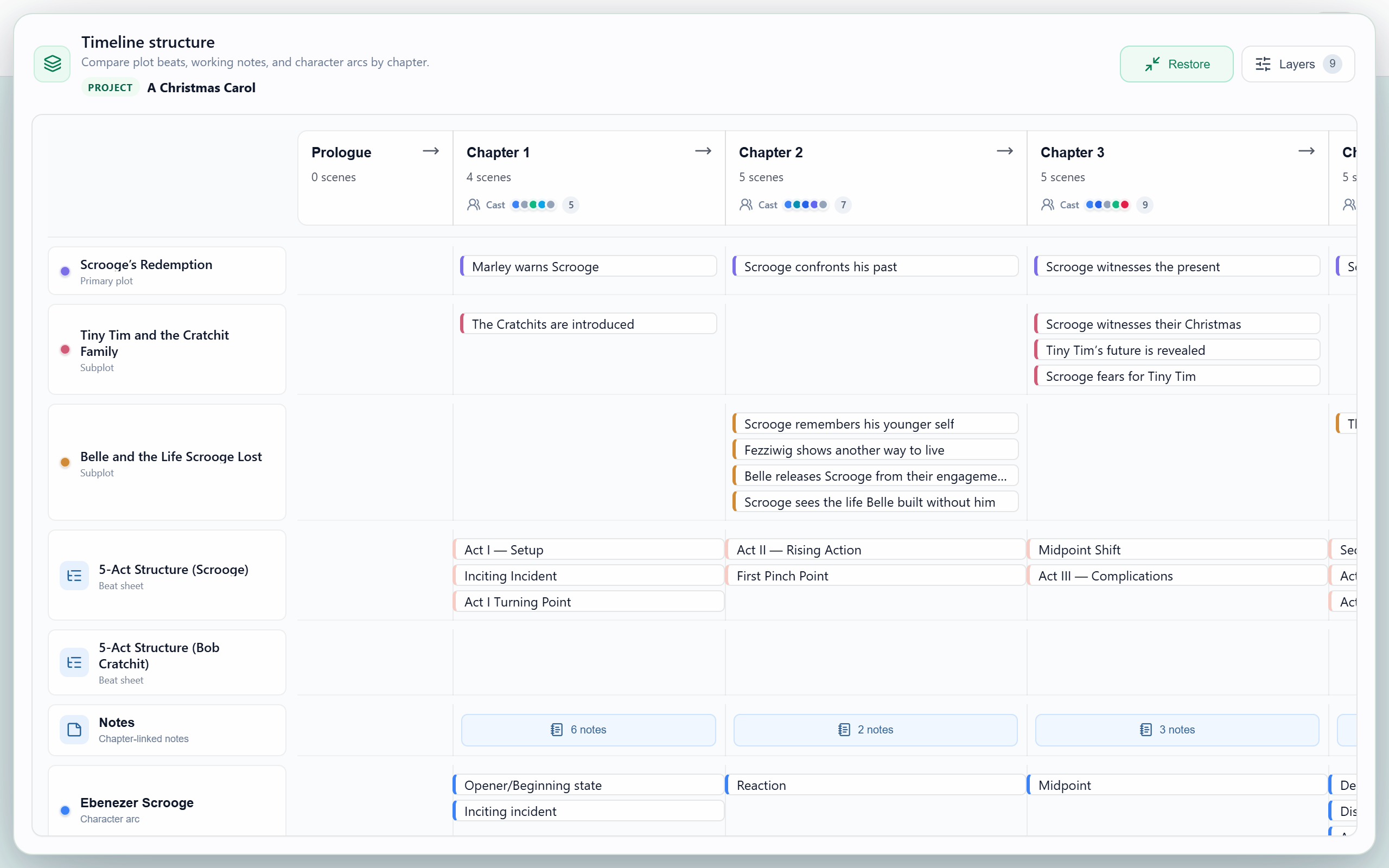
Rearranging your story
Many items in Timeline structure can be moved directly between chapters using drag and drop.
For example, you can move:
a plot or subplot development
a narrative framework beat
a character arc beat
Drag the item to another chapter within its existing row and drop it into place.
The change is applied to the underlying story data, not just the Timeline structure view. If you move a plot development, character beat, or framework beat to another chapter here, its chapter reference is updated everywhere else in Scryla as well.
This lets you experiment with your story structure on the fly. You might move a revelation later, bring a character turning point forward, or shift a structural beat while reviewing the overall rhythm of the novel.
Items can only be moved within their own row. A character arc beat cannot be dragged into a narrative framework row, for example, and a subplot development cannot be moved into another storyline.
This keeps each planning layer separate while still giving you the freedom to rearrange when its developments occur.
Navigating chapters
Select a chapter heading to return directly to that chapter in your project.
This is useful when Timeline structure reveals an area you want to inspect or edit in more detail.
Using Layers
Use the Layers menu to choose which information appears in Timeline structure.
When a project contains several plots, character arcs, frameworks, notes, and other planning elements, displaying everything at once can become busy. Hide the layers you do not currently need and bring them back whenever you want a wider view.
You might, for example:
compare plots against character arcs
review framework beats alongside chapter notes
focus only on subplots to check their distribution
compare character turning points against the primary plot
Changing layer visibility does not remove or alter any story data.
Tips
Turn off layers you do not need to reduce visual clutter.
Use the Maximize controls to see an expanded view of your timeline.
Drag beats and developments between chapters when experimenting with story order rather than editing each item separately.
Remember that moving an item here updates its chapter reference throughout Scryla.
Review your Narrative rhythm after major structural changes to check that the pacing still feels balanced.
Look for storylines or character arcs that disappear for long stretches unintentionally.
Watch for chapters carrying too many major developments at once.
Use Timeline structure to spot missing beats, congested chapters, weak stretches, or structural elements that may work better earlier or later.