Understanding the Worldbuilding View
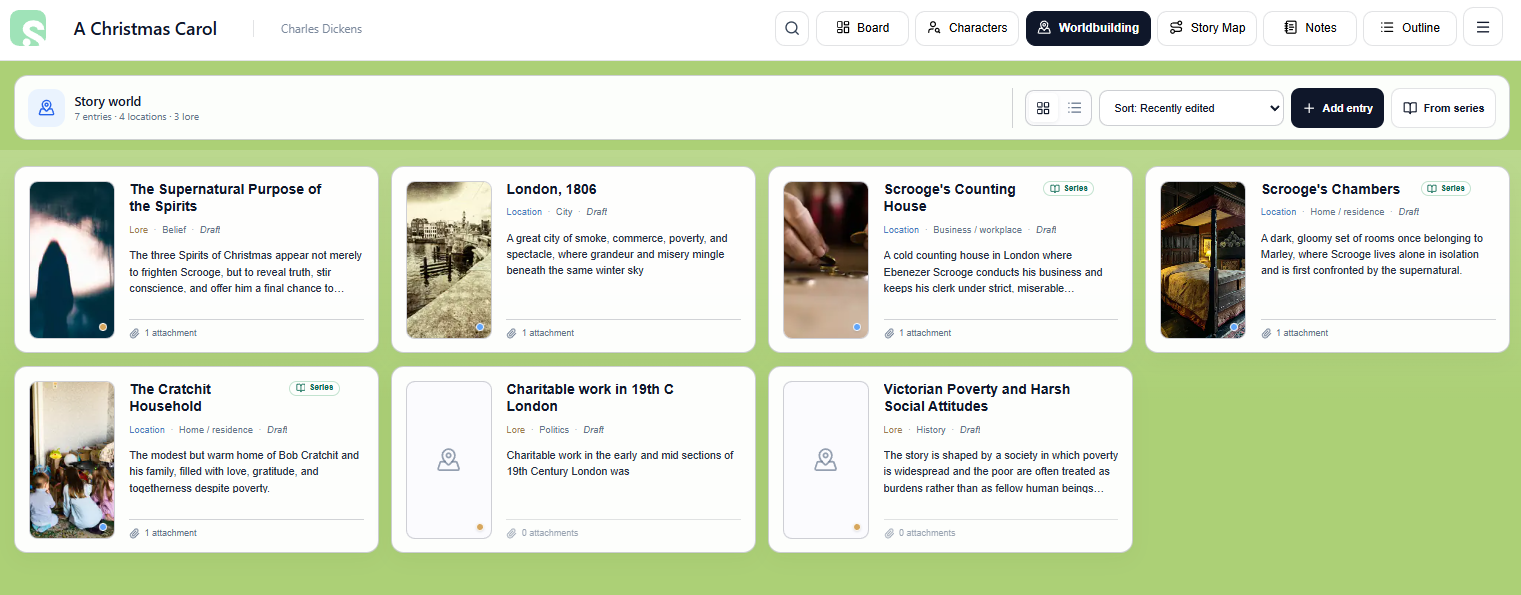
Worldbuilding has its own dedicated workspace because it plays such an important role in many works of fiction.
This is where you’ll flesh out your universe, with world maps, office buildings, historic research, or detailed outlines of your world’s magic system, police procedures, and more.
Worldbuilding controls

At the top-right of the view, you can:
Switch between grid view and list view (list view is suitable for smaller screens or if you have a large worldbuilding repository).
Sort your worldbuilding elements by title (A-Z, Z-A), by recently edited, or by oldest/newest first.
Add a new worldbuilding element.
Import series worldbuilding elements into your project (if the project belongs to a series)
You can use the navigation bar’s

Adding a new Worldbuilding element
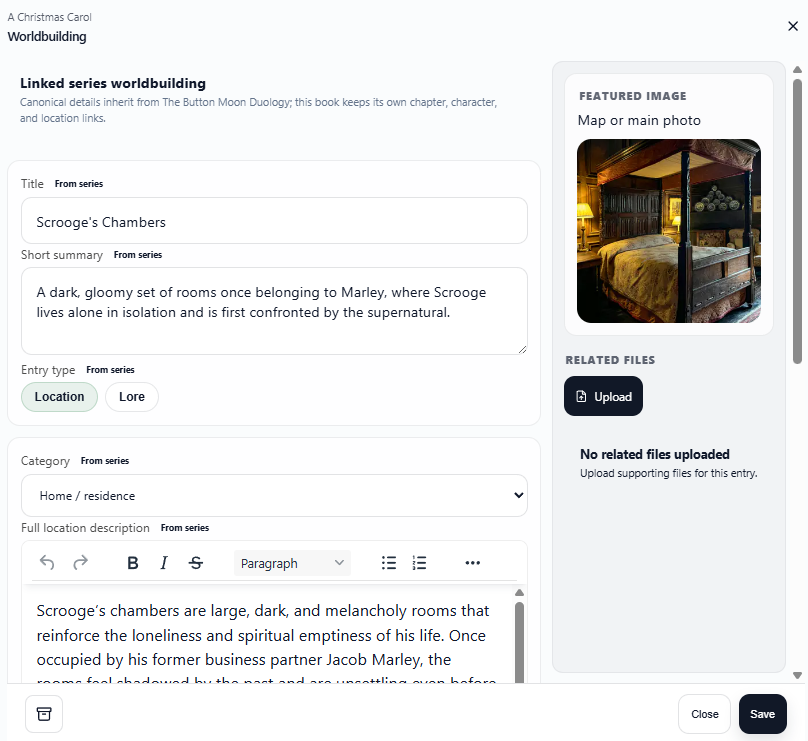
Everything you need to flesh out your world’s locations and lore lives here.
Title
Short summary
Entry type (location or lore)
Category (such as residence, landmark, religious system, creature or belief)
Full description (for a more detailed outline than the summary)
Related locations (taggable)
Related characters and chapters (where in your story this location or lore is used)
Tags (free-text allows you to further categorize or tag your worldbuilding element by additional tags).
Featured image
Related files (add research documents or related files)