Rearranging Your Workspace
Scryla’s Board and Notes views are designed to adapt to the way you work.
You can change the order of cards within a column and rearrange entire columns to keep the most useful information where you need it.
Rearrange Cards Within a Column

To move a card:
Select and hold the card.
Drag it to its new position within the same column.
Release it when the placement indicator appears where you want the card to go.
The new order is saved to your workspace.
You might use this to place active chapters near the top, group related notes together, or keep the most important characters in easy reach.
Cards Stay in Their Own Columns
Cards cannot be dragged from one column into another.
Each column represents a specific kind of story information. A chapter remains in Chapters, a beat sheet remains in Beat sheets, and a character remains in Characters.
To change what a card represents, edit the item itself rather than moving it to a different column.
Moving Chapters Does Not Rename Them
Rearranging chapter cards changes their order, but it does not change their titles.
For example, a chapter titled Chapter 6 will still be called Chapter 6 if you move it between Chapter 3 and Chapter 4.
Scryla preserves the title you entered rather than renumbering chapters automatically. After rearranging chapters, update their titles manually when needed.
Rearrange Columns
Columns can be reordered in both Board view and Notes view.
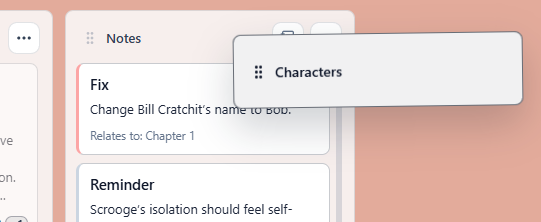
You can move a column in either of two ways:
Drag it left or right using the handle in the column header.
Open the column menu and select Move left or Move right.
Reset the Column Order
To return the workspace to its original layout:
Open any column menu.
Select Reset column order.
This changes the order of the columns only. It does not delete cards or alter the order of cards within them.
Arrange Around the Work in Front of You
There is no single correct layout.
During early planning, you might keep chapters, notes, and beat sheets close together. During revision, characters, continuity material, or marketing copy may deserve more space.
Treat the workspace as something you can reshape as the project changes. A useful layout is the one that keeps your current decisions visible and reduces unnecessary searching.